Did you know you can have an android OS on your PC. When I say an OS i mean you can boot from android and use it as the your PC's OS. This is not an emulator like bluestacks.
It is simple:
 First you wil have to get and image of the prefered OS from https://code.google.com/p/android-x86/downloads/list
If you are running on linux, it is simpler, just use the startup disk creator to create a
bootable pen drive of the image.
For windows you will need to download a tool to enable you do that. you can you Universal USB Disk creator.
Have fun...Good Luck
First you wil have to get and image of the prefered OS from https://code.google.com/p/android-x86/downloads/list
If you are running on linux, it is simpler, just use the startup disk creator to create a
bootable pen drive of the image.
For windows you will need to download a tool to enable you do that. you can you Universal USB Disk creator.
Have fun...Good Luck
Using your PC using Windows based OS (Vista or higher), open Command Prompt
- Type "diskpart" to open the disk partitioning software. Accept the UAC security prompt, if asked.
- Insert the USB drive.
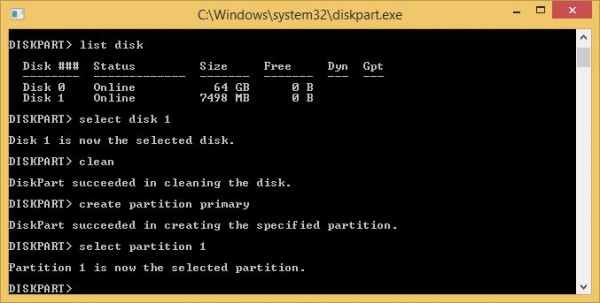
- Type "list disk". The program will then show you a list of all the physical drives (HDD, SSD, USB, etc.) that are attached.
- Identify the disk number of the USB drive (it can be recognized by
looking at the size column; it's usually the last listed disk) and type
"select disk X", where "X" is the disk number of your USB drive.
- Type "clean". This will erase the contents of the USB drive, so make sure you have the contents backed-up beforehand.
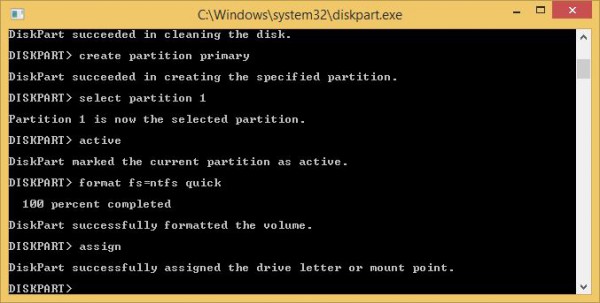
- Type "create partition primary". This command will create a primary partition on the USB drive.
- Type "select partition 1". This command will select the created partition.
- Type "active". This command will make the selected partition active.
- Type "format fs=ntfs quick". This command will format the created partition as NTFS.
- Type "assign". This command will assign a letter to the USB drive, which will make it show under Windows Explorer.
- Copy the contents of the Windows DVD or ISO from the created folder on the USB drive. this will work on windows vista,7,8 and 8.1. Good Luck